Business

nav

Comments

3D Phone
3D Tablets
3D Lapi
3D Tables Coming Soon!
3D Lapi Coming Soon!
Showing posts with label general. Show all posts

10 Technical and Cool Uses Of Usb Flash Drive You May Not know

I"ll summarize some interesting uses of a spare usb drive that some of you maynot know about.

Five Pure Technical Uses Of Usb Flash Drive You May Not know


1. Lock & Unlock Your Computer

You can lock and unlock your computer with a physical device, pretty much like they do in the movies. Use the free PREDATOR application, which turns a USB flash drive into an access control  device – a key for your computer. When you leave your PC, unplug the USB  stick and your computer will be locked. When you return, plug it back  in and your computer will be unlocked. It’s like using the Lock function  in Windows, but you don’t have to type your password when you return.
When you unplug your USB flash drive, your open windows will minimize and your screen will go dark – plug it back in and your screen will turn back on.

2. Quickly Connect To Wireless Networks


Windows includes a feature that can save your current wireless network’s  name, password, and other information to a USB stick. You can then use  the USB stick to quickly connect to your Wi-Fi network on other computers without typing the password over and over again. In fact, you can even use this USB stick to quickly connect an Xbox 360 to your Wi-Fi network – just select the Windows Connect Now option while setting up a wireless network on your Xbox.

To save your Wi-Fi settings to a USB flash drive >> click the wireless icon in your system tray >> right-click your current wireless network >> select Properties on the Connection tab >> click the Copy this network profile to a USB flash drivelink.

3

Click the Next button and Windows will copy the settings for the  configured network to your USB stick. Connect the USB stick to another  computer, and then double-click the setupSNK.exe file on it to install  your network profile on the computer.

3. Increase Performance With ReadyBoost


if you have a slow hard disk drive in your computer, ReadyBoost can help speed things up. When you enable ReadyBoost for a drive, it  acts as a hard drive cache, caching frequently used files. If it’s  faster to read from the USB stick instead of your hard drive, Windows  will read files from the cache on your flash drive instead. You won’t see much of a performance boost if you have a 7200+ RPM drive – if you have a solid-state drive, Windows won’t let you use ReadyBoost because the cache will be slower than your SSD.

To enable ReadyBoost, right-click a USB stick in Windows Explorer,  select Properties, and use the options on the ReadyBoost tab. Windows  will only let you enable ReadyBoost if your USB stick is fast enough, so  you might see these options grayed out for some devices. ReadyBoost  also requires a flash drive with at least 256 MB of free space.

Apart from uses like file sharing, data storage, remote access, password protector, the one feature which has come to popular use is ReadyBoost .It's a feature enabled in Windows 7 computers. It enables the users to use the memory in the USB flash drive to speed up your computer. In a way, it is used as RAM. Theoretically, upto 256 GB of RAM can be  enabled to your computer using this feature.

A detailed explaination here

4


4. Install A Portable Web Server


If you’re a web developer, you can install Server2Go on your flash drive and turn it into a portable web server. Server2Go includes a complete WAMPP server stack – that’s Windows, Apache, MySQL, PHP, and Perl. You can plug the Flash  drive into any Windows computer and quickly launch your web server – no  installation required. Having a complete web server package in your  pocket can be ideal for demonstrations at meetings and many other purposes – you’re only limited by your imagination. Server2Go is a completely free download.

5. Portable apps

You can also install a wide variety of portable applications which you  can run off your USB stick without installing them. Check out our list  of the best portable apps to get started!


Cool and Silly Uses Of Usb Flash Drive

6.Bury it in a wall with its end sticking out.

1

This is a USB "Dead Drop" - Anonymous P2P file sharing network.
2

But WHY? 

As you can see its not very convenient. You could end up with scratches on your laptop, a broken USB port, broken USB drive or all three. More importantly, why would you be bothered about checking it out or leaving something on it? The answer to that is - because it's fun (for some people at least). It isn't solving a problem, it isn't meant to be practical or useful.

Across New York, there are USB drives embedded in walls, buildings and curbs. The idea is to create an anonymous, offline file-sharing network in public space. The drives are completely public and anyone can plug in to drop and download files.

Seriously, you can plug the USB drive into your laptop. Like that guy right there.
It's part of an art project called "Dead Drops" by Aram Bartholl and I have to say, it's pretty awesomely creative. I mean, if I saw a USB stick stick out of a random wall, I'd be dying to know what's in there. I'd have to plug in. It'd also be interesting to see what people would anonymously share on the public drive, well, until some jackass decides to upload a virus to screw up everybody's computer

7.You can create a stripe set between two thumb drives, essentially a mini RAID0 array. The data is then inaccessible unless both drives are mounted, so the two drives can be given to two trustworthy people and then only used in tandem, kind of like missile keys.
So it's not especially useful, but it is cool.

8.This can be done

9.this one might be silly but, maybe helpful,,, save all your important info like your mobile password(i have iphone and it is locked with 4 digit key), health insurance details, address, phone number and a copy of your driver's license and contact numbers of family, few close and good friends(incase of emergency to call them) and attach the pen drive to your house keys.

Hope this might be helpful in some situations(atleast you met with an accident and you are alone- police might want to use it if you dont have your wallet on you or some situations(you can fill)).


any suggestions are accepted and further edited on request..!

11 Google features From the silly to the useful, make you love Google even more

Google offers so much more than just search.
From the silly to the useful, these Google features will make you love Google even more than you probably already did.

1. Google Image search "Atari Breakout" and prepare to forget whatever else you were supposed to be doing.


2. You can set a timer on Google (and get an alarm to sound when time isup) by Googling any amount of time followed by "timer."


3. Google Sky lets you explore the far reaches of the universe using imagesfrom NASA satellite, the Sloan Digital Sky Survey, and the Hubble Telescope.


4. Google nGrams is a fun tool that lets you search for words in 5.2 million books published between 1500 and 2008 so you can see how much it's been used over time.


5. Intimidated by huge numbers? Google will help you figure out how to pronounce that 12-string number if you type "=english" after it.


6. Unleash your inner child by checking out Google's Build with Chrome.


You can add "+anything" when typing your email address and it will still work. This can be good for filtering emails (for example, you could set upa folder for all emails sent to "youremail+datingsite@gmail.com").

7. Google recently released a fun new Maps game called SmartyPins that gives you geographic trivia.


8. Getting married? Google will help you plan your wedding, announce the news, locate a venue, fill in the plans, make a website, and more.


9. There's a "Manual" feature in Google Translate that lets you draw characters or symbols.


11. Get your culture on by using Google Art Project to check out super high-res photos of artwork from the world's greatest museums.


Update:
Loved playing "Atari Breakout"? Here's one more..
12. Google search "zerg rush" and end up with finger pain!


</>
</>
</>
</>
</>
</>
10. Find a gorgeous font that you can use for free (Google Fonts).
Developers at Google are so cool! Check these funny things to know why..
Google search the following one at a time
  1. "Do A Barrel Roll"
  2. "Tilt"
  3. "Recursion"
  4. "Define Anagram"


  1. Open Google Play and click search icon without entering any search terms.
    You'll get search results with Unicorns everywhere ^_^
  2. Search for "Do The Harlem Shake" in Youtube
  3. Typing in “/Pitchforks” in a Google Hangouts dialogue box will launch a stream of angry townspeople racing across the screen with pitchforks. “/ShyDino” will feature a green dinosaur hiding behind a small house in your chat window, while typing “/BikeShed” will also change the background color. And they didn't forget My Little Pony: Friendship is Magic in Google Hangouts, either: Typing in “/Ponies” or “/Ponystream” will make animated ponies dash across your chat window.
    </>
  4. In Google Maps, search for “Police Telephone Box.” It will bring youEarl’s Court Station. Go to the location’s streetview and you’ll see the Doctor Who TARDIS on the sidewalk. Click the double-white arrows in front of the police box and you’ll be sent to the inside of the time machine. Once inside, you’ll be able to have a 360-degree view of its interior.
    </>
  5. In the late 80s, video game developer Konami utilized a special cheat code that could be used on the company's video games. The “Konami Code” was made popular with Contra for the Nintendo Entertainment System. When players input “upup, down, down, left, right, left, right, B, A, start” during the game’s title sequence, they could unlock 30 extra lives to get through the game instead of the standard three.
    Google has used the Konami Code on a few of its products, including Google Play Games, Google Docs, and Google’s Chromebook Pixel. Swiping the Konami Code in the Google Play Games mobile app willunlock a clever achievement that reads, “All Your Games Belong To Us.” In Google Docs, typing the Konami Code will reverse your entire document, and in Google’s Chromebook Pixel, typing in the code will make the LCD stripe on the outside of the computer blink in a frenzy of various colors.   
  6. Bored with image search? Now you can have a spinning layout to search for images. Check Google Sphere

Source:
Internet

keyboard layout Q-W-E-R-T-Y and not simply A-B-C-D-E-F. Why?

keyboard layout Q-W-E-R-T-Y and not simply A-B-C-D-E-F?

It hasn’t been done randomly or just for fun, it has a very distinct and purposeful reason behind it.

The current format of the keyboard was devised long back in 1870’s by a gentleman named Christopher Sholes. Though, it definitely was not the first format to come up, it didn’t take much time to switch to this one. Starting with lexicographic order i.e. A-B-C-D-E-F, after various trials and errors and taking hundreds of cases, Christopher Sholes gradually reached the Q-W-E-R-T-Y. It was really well received (evident from the fact that we still use it).

When the typewriter was invented, it used a metal bar to hold the character alphabets and the other end of the bar was attached to a linkage carrying a carriage with the coated ink. When a key was struck, it would emboss its character on the paper placed beneath the carriage. However, when an operator learned to type at a great speed, a certain flaw invoked. When two letters were struck in quick succession, the bars of the typewriter would entangle and get jammed.

Christopher Sholes found a way out. He proposed that the letters of frequently used letter pairs should be in different rows. For example, ‘C-H’, ‘S-T’, ’T-H’, ‘W-H’ and more. He also formulated that to speed up the typing process, there has to be a regular alternation between two hands. So observing thousands of words, he placed the letters in way that most words would make use of both hands.

He also observed that almost every word in the dictionary carries a vowel. According to him, the most frequently used vowel was ‘A’ and the most frequently used letter (non-vowel) was ‘S’. So he placed ‘A’ and ‘S’ together and chose to keep less common letters like ‘Q’, ‘W’, ‘Z’, ‘X’, ‘C’ around these. This was complemented by placing fairly common letters like ‘M’, ‘N’, ‘L’, ‘K’, ‘O’, ‘P’ at right extremes to create a perfect alternation between both the hands.

All these factors tested with thousands of trials gave us the format that we still use and perhaps would be using till eternity.

Top 5 Computer Tricks Every Geek Should Know

We geeks are special: we want to go above and beyond, to explore every nook and cranny of our system and make everything easier. Here are five ways to do.

5. Use the Command Line Like a Ninja


Using the command line isn't as exciting as it looks in the movies, but it can be a very useful tool (in fact, some tools are just better in the command line). It's pretty easy to learn, too-check out our command line primer for beginners to learn some basic commands. Once you've got that down, read up on the best shortcuts that help you navigate the command line like a ninja. Those guides apply to UNIX-based systems like Linux and OS X, but if you're a Windows user you can grab something like Cygwin to get a similar experience (or, if you want a more Windows-centric tool, try Powershell).

4. Know Your OS's Hidden Features


Every operating system has hidden things lying under the hood, you just have to know where to look. Windows users should check out the hidden features of Windows 7 and Windows 8, while Mac users should peruse the hidden features of OS X Lion and Mountain Lion. If you want to find even more, you can often find them in Windows' Registry or in OS X's terminal. System tweakers like Ultimate Windows Tweaker, OnyX for Mac, and Ubuntu Tweak are also great places to find secret features.

3. Navigate Everything With Your Keyboard


There are certain basic keyboard shortcuts everyone should know, but if you really want to use your computer more efficiently, you can take it so much further. Learn the most common shortcuts for your favorite programs, like Gmail, Microsoft Word, basic text boxes, and even Facebook. After a little while, you'll be able to blow through menus and text boxes with unbelievable speed. Check out our guide to becoming a keyboard ninja, complete with a bunch of cheat sheets to help get you off the ground.


2. Learn to Crack Passwords (and Protect Yourself)


Everyone should know how to create a secure password, but responsible geeks can take it a step further by learning how to break into a comptuer. This skill-whether used on a Windows machine or a Mac-can really help you understand how computer thieves and hackers will try to get at your data. Learning the process means you know how to protect yourself against the process-not just with strong passwords but with encryption and other settings tweaks that keep thieves out. Similarly, you may also want to learn how to crack a Wi-Fi network's WEP and WPA password

1. Squeeze More Power Out of Your Hardware


With a bit of tweaking, you can push your hardware past its original limits and get some pretty serious bang for your buck. When it comes to your PC, you can overclock your processor and video card, and even install OS X on non-Macs by building a Hackintosh. And, while you're at it-even though it isn't a computer trick specifically-you should try turning your $60 router into a $600 router with DD-WRT.


WATCH: How simple Questions lead to scientific discoveries

The simplest questions can carry you to edge of human knowledge, says Adam Savage, as he discusses the incredible scientific discoveries that came from simple, creative methods that anyone could have followed.
 
However brilliant any of us are with our brains, the one thing we can't do is control what kinds of information it picks up and holds on to. I, for example, don't remember a single thing I learnt in my first-year university philosophy classes, except that once my lecturer compared these honey tubes to a sphincter.

Unless I somehow end up with a career in packaging design, that information isn't going to help me much. But for American theoretical physicist Richard Feynman, a little something his father once said to him prompted him, many years later, to answer several fundamental questions about the physics of the Universe.

When a young Feynman was walking with his dad one day, his little wagon in tow with a ball inside, Feyman asked why the ball would move to the back of the wagon every time the wagon was pulled forward. His dad said, "That's inertia." When young Feynman asked what inertia was, his dad said, "Inertia is the name that scientists give to the phenomenon of the ball going to the back of the wagon." He was obviously joking, but went on to tell his son, "In truth, no one really knows."

This little conversation with his father is what convinced Feynman that the simplest questions can take you to the edge of human knowledge, says Adam Savage in his TED talk, which is where he made his most groundbreaking discoveries.

Watch Savage's awesome talk above, where he goes on to discuss how Eratosthenes' calculation of the Earth's circumference in 200 BC and Hippolyte Fizeau's measurement of the speed of light in 1849 came from surprisingly humble beginnings. It's pretty inspirational stuff.


Source: TED-Ed

5 features that differs Windows 10 from Windows 8

Microsoft is launching Windows 10 as the new face of both Windows and eventually Windows Phone. At one point during Microsoft’s Tuesday press event.during Microsoft’s Tuesday press event, Terry Myerson, the executive vice president in charge of Microsoft’s OS group Microsoft is looking for user feedback, and what I demo'd on Tuesday may not be the same OS that customers receive next year.Windows 10 tentatively scheduled to be launched around the middle of 2015

techin3d

Windows 10: Expanded Start Menu

it looks like  someone conjoined the Windows 7 and Windows 8 experience.As you can see in the below screen on the left, there’s a list of frequently used apps, along with shortcuts to PC settings, as well as your documents and pictures folders. At the bottom, there’s a shortcut to launch an “all apps” view. It appears that you should think of Live Tiles more like notifications rather than app shortcuts, although you can use them either way.


If you want, you can resize the Start menu, increasing or decreasing its size and adjusting its position.
 

Windows 10: Multiple desktops


Instead of too many apps and files overlapping on a single desktop, it's easy to create and switch between distinct desktops for different purposes and projects ( whether for worker or personal use)

Windows 10: Search improved

In this latest version they moved the  one of the major functionality of the Windows 8 Start page  to the desktop environment of Windows 10. I am talking about the Search button it is added to the  taskbar with this you"searching" for recent apps or documents is  often quicker.

Windows 10: Snap enhancements

Working in multiple apps at once is made easier and more intuitive with snap .A new quadrant layout in Windows 10 allows up to four apps to be snapped on the same screen.it will even make smart suggestions on filling available screen space with  other open apps.  

For example  that once you snap an app, Windows 10 suggests another, similar app that you might want to snap next to it, from a small collection of windows. The feature is intended to save you the hassle of hunting about through menus to actually construct a virtual desktop. Time will tell whether these suggestions will prove useful, but it’s a good start. 

Windows 10: New Task view button

The new Task  view button on the task bar enables one viewforall  open apps and files, allowing for quickswitching and one touch access to any desktop created.


How to overcome Cellphone addiction

Are you always talking to your friends, downloading ringers, and speeding text messages to people? Depending how much time and effort you put into those situations, you may have a cell phone addiction. Read this article to stop or slow down.

 Flurry defines a “mobile addict” as “a consumer that launches apps more than 60 times per day,”

According to a Baylor University study on cellphone activity published in theJournal of Behavioral Addictions.-- based on an online survey of 164 college students -- examined 24 cellphone activities and found that time spent on 11 of those activities differed significantly across the sexes. Some functions -- among them Pinterest and Instagram -- are associated significantly with cellphone addiction. But others that might logically seem to be addictive -- Internet use and gaming -- were not

Women college students spend an average of 10 hours a day on their cellphones and men college students spend nearly eight, with excessive use posing potential risks for academic performance,  

female phone addiction is more than Male
female addiction
  • Of the top activities, respondents overall reported spending the most time texting (an average of 94.6 minutes a day), followed by sending emails (48.5 minutes), checking Facebook (38.6 minutes), surfing the Internet (34.4 minutes) and listening to their iPods. (26.9 minutes).                                                                                                                                           (see also: Prevent Being Tracked Online )                          
  • Men send about the same number of emails but spend less time on each. "That may suggest that they're sending shorter, more utilitarian messages than their female counterparts,"
  • Women spend more time on their cellphones that men are more invested in technology,  "women may be more inclined to use cellphones for social reasons such as texting or emails to build relationships and have deeper conversations."
  •  Using their cellphones for utilitarian or entertainment purposes,.They spent time visiting such social networking sites as Facebook, Instagram and Twitter. Among reasons they used Twitter were to follow sports figures, catch up on the news -- "or, as one male student explained it, 'waste time,'" Roberts said
How to overcome Cellphone addiction
5 ways to overcome Cellphone addiction

5 Ways To Recover from your cell phone Addiction


Admitting you have a problem  Do you panic when you’ve misplaced your phone?Are you on your phone during social situations or in the presence of family?Do you carry your smartphone everywhere, even to the bathroom?Do you go to sleep and wake up looking at your phone?

Create Boundaries. Put your phone on silent. Stop alert notifications. Why do you need a notification to let you know someone “liked” your Facebook picture? 

Out of sight out of mind. During family time or hanging out with friends, put your cell phone someplace where you won’t hear or see it. 

DON’T sleep with your phone. The old excuse that “it’s my alarm clock” just won’t do. Buy an alarm clock – and store the phone somewhere else besides your nightstand or bed.

Go on a full detox. Use a weekend to do a full detox. Put it away on a Friday and don’t pick it up until Sunday. Cash promises that the world won’t end! Once you’re done with the detox, gradually implement some of the tips above. Cash says this action will give your brain a chance to normalize, and get back into the pace of normal life.

If you have problems setting these boundaries, Researchers  recommends additional therapy.

Are you addicted to your smartphone? Share some of your thoughts and experiences with us!
Source

The above  is based on materials provided by Baylor University. Materials may be edited for content and length

where do the deleted items or files go in the computer

When you delete a file on a Windows computer, it is moved to the computer's Recycle Bin, and Later, when you empty the Recycle Bin and the files are deleted, what happens to the deleted files? Where do they go? 

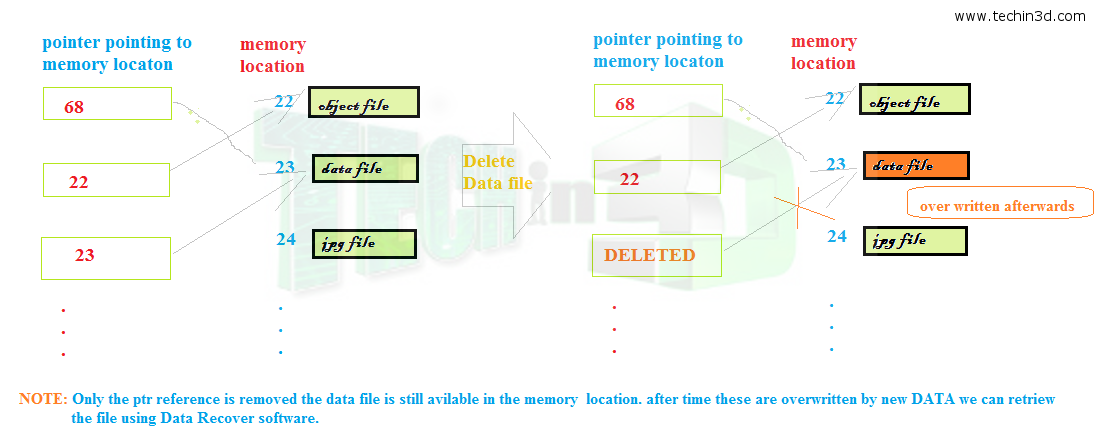
   Seriously they don't go anywhere, all that happens is your hard drive recognizes the space they occupied as empty and ready to written over. Until that happens they can be recovered, or even if sectors of the file still haven't been overwritten they can be partially recovered. That's why you might see a movie scene where the FBI or whatever recover something from a hard drive and it is in fragments that need piecing together

   If you look at How Hard Disks Work, you can see that a traditional hard disk is a disk that is divided into thousands of sectors. Each sector holds a certain number of bytes (e.g. 512 bytes per sector) that is determined when you format the disk.Let’s say your file is 10,000 bytes long. It is stored as a set of roughly 20 sectors on the disk. When you delete a file, all you are doing is changing a pointer to an address on the hard drive. The file is NOT deleted, the address where the file is located is made available for the next write operation.

   For your better understanding think of your hard drive as a battle ships board game or pigeon holes at a post office. You have a grid, on the left you have numbers along the bottom letters. When you search for a file you are asking the computer the co-ordinates 23 - k for example. It goes to 23 - k and retrieves your file. When you delete a file, its not the file that gets deleted, its the co-ordinates ! Which is why files that have been deleted can be found with special software.

Only the file pointer changes 
    If you want to really delete files, you should format your hard drive. If your really really want to delete files, smash the disk up with a hammer and hammer it a bit more until it looks like tin foil ! 

  Because the file is technically there, it may be able to be recovered using data recovery software, designed to rebuilt the file header and allow the computer to see the file again. This software only works if no other file or data has been saved over the top of the deleted file.